In short
The best writing app for iPad depends on the size of the project. Scrivener is the strongest choice for full-length novels, Ulysses and iA Writer suit writers who want a clean Markdown workspace, Pages and Google Docs are the free options, and Obsidian works best as a story notebook rather than a manuscript tool. Pair any of them with a hardware keyboard, a dedicated Focus mode and a backup routine outside the app.
- Long novel with research and many chapters: Scrivener
- Distraction-free drafting across Apple devices: Ulysses or iA Writer
- Free and good enough for many books: Pages or Google Docs
- Final ebook formatting still happens mostly off the iPad
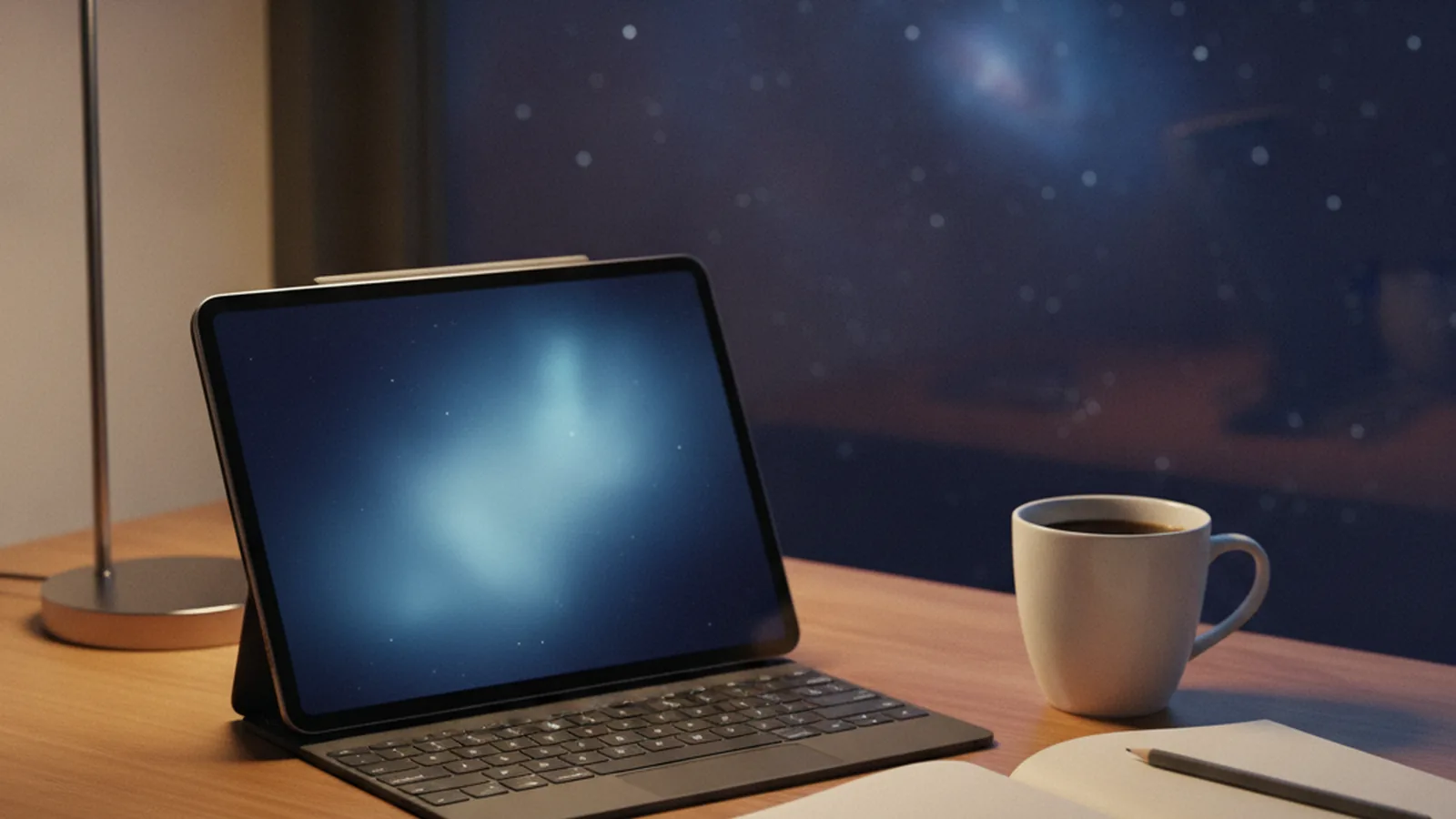
An iPad with a keyboard is a surprisingly good novel-writing machine. It is light, it runs for a full day on battery, and with the right setup it offers fewer distractions than a laptop. The weak point is software choice: the App Store is full of writing apps that look similar in screenshots but behave very differently once a manuscript passes 50,000 words, needs to sync with a Mac, or has to be exported for an editor.
This guide compares the writing apps that hold up for long fiction on iPad, explains what each one is actually good at, and covers the parts most lists skip: export formats, sync conflicts, and how to get a finished draft into Kindle Direct Publishing. It is written for novelists, but the same choices apply to short story writers and anyone drafting non-fiction.
A note on why native apps matter here. The tools that work best on iPad are built specifically for iPadOS: they support keyboard shortcuts, offline editing, Split View and reliable iCloud or Dropbox sync. Web wrappers tend to stumble on exactly those points. Authors and small presses who want something these apps do not offer, such as a companion reading app for a series or a private drafting tool for a writing group, usually commission it from a studio that does native iOS work, for example YuSMP Group, rather than bending a generic app to fit.
Which iPad writing app fits which writer?
Start with the shape of your project, not with the feature list. The table below summarises the apps covered in this guide. Prices are those listed on the App Store and developer sites at the time of writing and can change.
| App | Best for | Pricing model | Sync | Useful exports |
|---|---|---|---|---|
| Scrivener | Full-length novels, research-heavy books | One-time purchase (iOS version sold separately from Mac/Windows) | Dropbox | DOCX, PDF, EPUB via Compile |
| Ulysses | Clean drafting across iPhone, iPad and Mac | Subscription | iCloud | DOCX, PDF, EPUB, HTML |
| iA Writer | Focused Markdown writing, plain-text files | One-time purchase | iCloud, Dropbox, Files | DOCX, PDF, HTML |
| Apple Pages | Free all-rounder for Apple users | Free | iCloud | DOCX, PDF, EPUB |
| Google Docs | Collaboration with editors and beta readers | Free | Google Drive | DOCX, PDF (EPUB from the web version) |
| Microsoft Word | Writers whose editors require Track Changes | Free on small screens, Microsoft 365 for editing on larger iPads | OneDrive | DOCX, PDF |
| Obsidian | Story bible, notes, worldbuilding | Free, paid sync optional | Obsidian Sync or iCloud | Markdown, PDF |
How we compared these apps
Every app in this guide was judged on the jobs a novelist actually needs done, rather than on the length of its feature list. Five criteria mattered most:
- Long-document handling. Does the app stay responsive with a manuscript of 80,000 to 120,000 words, and can you jump between chapters quickly?
- Structure. Can you split a book into scenes or chapters and reorder them without copying and pasting?
- Sync and safety. How does the app move work between devices, and what happens when two devices edit the same file?
- Export. Can it produce a DOCX file an editor will accept and an EPUB or PDF for review copies?
- Lock-in. If you stop using the app in five years, how easy is it to take your work with you?
No single app wins on all five. Scrivener leads on structure, iA Writer on lock-in, Google Docs on collaboration, and Ulysses on effortless sync. A practical answer is to combine two apps: one for planning or notes and one for the manuscript.
Scrivener: the best app for writing a novel on iPad
Scrivener is the most complete manuscript tool on iPad. It treats a book as a collection of scenes and chapters in a binder, so you can draft out of order, move scenes around and keep research files inside the same project. For a novel with several viewpoint characters or a long series arc, that structure saves real time.
What it does well
- Binder and corkboard views for rearranging scenes and chapters
- Per-document synopses, labels and status markers
- Project and session word targets
- Compile, which assembles the manuscript into DOCX, PDF or EPUB
Where it falls short
Sync relies on Dropbox, and it is manual: you sync before closing the project on one device and before opening it on another. Skip that step and you can end up with conflicting copies.
The iOS version also has a smaller Compile feature set than the desktop app, so many writers draft on iPad and do the final compile on a Mac or PC. The iOS app is a separate purchase from the desktop licence. Details are on the Literature & Latte Scrivener page.
Ulysses: distraction-free drafting across Apple devices
Ulysses suits writers who want to open the app and type, with almost nothing on screen except text. It uses a Markdown-based syntax, stores everything in its own library, and syncs through iCloud without manual steps. Moving from iPhone on the train to iPad at the desk takes no extra steps.
A manuscript lives as a group of sheets, which works like a lighter version of Scrivener's binder. Writing goals can be set per sheet or per group, and the export panel produces clean DOCX, PDF and EPUB files with selectable styles. The trade-off is the subscription and the fact that Ulysses runs only on Apple platforms. If you ever move to Windows or Android, you will need to export your library.
iA Writer: plain text you will still be able to open in 20 years
iA Writer is a Markdown editor built around focus. Its Focus Mode dims everything except the current sentence or paragraph, and its syntax highlighting can mark adjectives, adverbs and repeated words, which helps during revision. Files are plain text, saved wherever you choose: iCloud Drive, Dropbox or the Files app.
That plain-text approach is the main reason to choose it. Nothing is locked in a proprietary format, so you can open the same files in any other editor. For a novel, keep one file per chapter in a folder and use iA Writer's content blocks to assemble them. It has fewer project-management tools than Scrivener, so it fits writers who outline elsewhere.
What are the best free writing apps for iPad?
Apple Pages and Google Docs are the two free apps that can carry a whole novel. Both can handle a full manuscript if you split it sensibly and use heading styles.
Apple Pages
Pages comes free with every iPad, syncs through iCloud and exports to DOCX, PDF and EPUB. Its EPUB export is good enough for review copies and simple ebooks. For a long manuscript, use paragraph styles for headings so you can generate a table of contents and move through the book chapter by chapter. Recent versions also added AI writing features; we looked at what that means for authors in our piece on the Pages AI assistant.
Google Docs
Google Docs is the easiest option when other people are involved. Editors, critique partners and beta readers can comment in the same document without installing anything special. Offline editing on iPad has to be switched on per file, and very long documents can get slow, so splitting a novel into one document per act or per ten chapters keeps it responsive.
Is Microsoft Word worth it on iPad?
Word is worth it if your editor or publisher works in Track Changes, because round-tripping a DOCX file through Pages or Google Docs can lose comments and formatting. On iPads with screens of 10.1 inches or smaller, Microsoft lets you create and edit documents for free with a personal account. On larger iPads, editing requires a Microsoft 365 subscription. If you already pay for Microsoft 365, Word becomes a reasonable choice for the editing stage even if you draft somewhere else.
Obsidian and other note apps: for the story bible, not the manuscript
Obsidian is a Markdown notes app with linking between notes, which makes it a strong place to keep a story bible: characters, locations, timelines, technology and the rules of your world. Linking a character note to every scene note where that character appears gives you a quick way to check continuity across a long series.
It is less suited to the manuscript itself, because it has no compile or book-export feature. A common setup is Obsidian for planning and Scrivener, Ulysses or iA Writer for drafting. If you write science fiction with a large invented world, see our comparison of worldbuilding software for sci-fi writers for dedicated tools such as World Anvil and Campfire.
Apple Notes, Bear and similar apps are excellent for capturing lines and ideas on the go. Use them as an inbox, then move material into your main project during each writing session.
Dictation, Apple Pencil and other ways to draft on iPad
Typing is not the only way to get words onto an iPad. Two alternatives are worth trying, especially on days when sitting at a keyboard is hard.
Drafting with iPadOS dictation
The built-in dictation in iPadOS works in almost any text field, including Scrivener, Ulysses and Pages. It handles natural speech well, and you can speak punctuation such as comma, period and new paragraph. Some writers dictate a rough first draft while walking and then edit at the desk. Expect to clean up names, invented words and dialogue tags afterwards; a science fiction novel full of made-up place names will need more correction than a contemporary story.
Apple Pencil and handwriting
With Apple Pencil, Scribble converts handwriting into typed text in standard text fields. It is too slow for a full chapter, but useful for short notes and quick fixes. Handwriting apps such as GoodNotes and Notability are good for annotating a PDF export of your draft during a revision pass, which is the closest thing on iPad to editing a paper manuscript with a red pen.
What about screenwriting and short fiction?
Screenplays need strict formatting, so a general writing app is the wrong tool. Final Draft offers an iPad version, and Fountain-based apps let you write a script in plain text that converts to standard screenplay format. Scrivener also includes script templates, which helps if you adapt your own novel for the screen.
Short stories and flash fiction need far less structure. iA Writer, Ulysses or even Apple Notes are enough, and the simpler setup keeps attention at the sentence level, where short fiction succeeds or fails. Keep each story in its own file or sheet so you can track submissions separately.
How do you set up an iPad for serious writing?
A writing app solves only part of the problem. The setup around it decides whether the iPad stays a writing tool or drifts back into a video and email device.
- Get a proper keyboard. A keyboard case or a full-size Bluetooth keyboard makes long sessions comfortable. Typing a novel on the on-screen keyboard is possible but slow and tiring.
- Create a Writing Focus. In Settings, go to Focus and add a new Focus named Writing. Allow notifications only from essential contacts, and limit the Home Screen to a page with your writing app.
- Automate it. Set the Writing Focus to turn on when you open your writing app or at your usual writing time.
- Raise the screen. A stand that lifts the iPad closer to eye level reduces neck strain during long sessions.
- Learn the shortcuts. Hold the Command key in most apps to see their keyboard shortcuts, and learn the ones for navigation and formatting first.
- Draft full screen. Keep Split View and Stage Manager for research sessions, so a browser window does not sit next to the draft.
How do you avoid losing a manuscript on iPad?
Sync is not a backup. If you delete a chapter by mistake, sync will delete it everywhere. Protect the manuscript with a routine that does not depend on the writing app itself.
- Export a full copy of the manuscript as DOCX or plain text once a week and save it to a different service from the one your app syncs to.
- In Scrivener, always sync before you close a project and before you open it on another device.
- Do not keep the only copy of a draft in On My iPad storage.
- Before a big revision, duplicate the project or create a snapshot so you can return to the earlier version.
If you lose momentum after a setback like this, our guide to getting past writer's block includes a short reset plan.
Can you format and publish a book from an iPad?
Partly. Drafting and editing work well on iPad, but final formatting is where it still lags behind a desktop. Vellum and Kindle Create, two popular formatting tools among self-published authors, run only on desktop computers. Atticus runs in a web browser and can be used on iPad, though a larger screen helps.
For ebooks, Amazon Kindle Direct Publishing accepts DOCX and EPUB manuscripts, among other formats; the current list is in the KDP supported formats help page. That means a clean DOCX export from Scrivener, Ulysses, Pages or Word can go straight to KDP for a simple text-only novel. For Apple Books, Pages can export EPUB directly; we cover the full process in how to publish on Apple Books.
Print layouts with custom headers, drop caps and scene-break ornaments are the one area where most authors still switch to a computer or hire a formatter.
How to choose: a short decision checklist
- Writing a long novel with many scenes and research notes? Choose Scrivener and accept the manual Dropbox sync.
- Want the simplest experience on iPhone, iPad and Mac? Choose Ulysses if you are fine with a subscription.
- Care most about owning plain files in a portable format? Choose iA Writer.
- Do not want to spend anything? Start with Pages, or Google Docs if other people need to comment.
- Editor works in Track Changes? Add Word for the editing stage.
- Large invented world or a series? Add Obsidian for the story bible.
Most apps offer a free trial or a free tier. Write one real chapter in your top two choices, export it, and open the export on another device. That single test shows more than any feature comparison. If you also use AI for brainstorming or revision, our overview of AI tools for fiction writers explains where they help and where they do not.
The best writing app is the one that makes it easy to start a session and impossible to lose what you wrote in it.
Questions about iPad writing apps
What is the best writing app for iPad for novelists?
For most novelists, Scrivener is the best choice because it handles long manuscripts, scene reordering and research in one project. Writers who prefer a simpler interface often choose Ulysses or iA Writer instead.
Is there a good free writing app for iPad?
Yes. Apple Pages is free, syncs through iCloud and exports to DOCX, PDF and EPUB. Google Docs is also free and is the better choice when editors or beta readers need to comment.
Can I write a whole book on an iPad?
Yes. With a hardware keyboard and an app built for long documents, an iPad is fully capable of drafting and editing a novel. Final print formatting is usually easier on a desktop computer.
Does Scrivener sync between iPad and Mac?
Yes, through Dropbox. Sync is manual, so sync before closing the project on one device and before opening it on the other to avoid conflicting copies.
Do I need Microsoft 365 to use Word on iPad?
It depends on the screen size. On iPads with screens of 10.1 inches or smaller, editing is free with a Microsoft account. Larger iPads need a Microsoft 365 subscription to edit documents.
Which iPad writing apps export to EPUB?
Scrivener, Ulysses and Apple Pages can export EPUB files on iPad, and Google Docs offers EPUB download in its web version. For Kindle, a clean DOCX file is also accepted by KDP.

Independent reader guides, science notes and writing craft.